ChatGPT can now read your iCloud inbox, send email, and change events on the calendar your whole family shares. Here is how to decide what to hand it, and in what order.
By Warren Schuitema, AI Systems Consultant, Matchless Marketing / Matchless AI
Published: October 31, 2026 | Last Updated: October 2026

Our family calendar knows more about us than most of our friends do.
Doctor appointments. Practice times. Which night I have a late client call. Which weekend we are out of town. If you run a business from home, your calendar is probably the same mix. The kids' stuff and the client stuff live side by side, because that is how your life actually works.
On October 27, OpenAI gave ChatGPT a way into that calendar. New iCloud Mail and iCloud Calendar plugins let ChatGPT read, schedule, and update events, search and read your iCloud email, manage drafts, look up contacts, and send email. They work on every ChatGPT plan, free included, on the web, the desktop app, and iPhone.
So should you connect ChatGPT to your iCloud Mail and Calendar? For most busy owners, yes, but not all at once. Start with the calendar, and start with reading. Let it look and suggest for a couple of weeks. Add mail search after that. Keep sending email behind your own click for as long as you can. You decide the order. The tool should earn each new key.
That is good news, by the way. Apple users waited a long time for this. It just deserves a plan before you type in the password.
Key Takeaways
- As of October 27, 2026, ChatGPT can connect to iCloud Mail and iCloud Calendar on all plans, on web, desktop, and iPhone.
- It only works with Apple email addresses ending in @icloud.com, @me.com, or @mac.com, and you need an Apple app-specific password to connect.
- In a Microsoft-backed field experiment with 7,137 workers at 66 firms, people who used an AI assistant spent about two fewer hours a week on email but replied to the same number of threads.
- Give ChatGPT the calendar first, mail reading second, and sending last. Each step should prove it saves you Time, Money, or Energy before it gets the next one.
- You can cut off access any time by revoking the app-specific password at account.apple.com.
ChatGPT Can Now Work Inside Your Apple Inbox and Calendar
Here is what actually changed, in plain words.
Before this week, ChatGPT could connect to some email and calendar tools, but iCloud users were mostly left out. Now there are two new plugins.
iCloud Calendar. According to MacRumors, ChatGPT "can read, schedule, and update events that show up on your iPhone's Calendar app or any third-party app that uses iCloud Calendar." That means you can ask it things like "What does Thursday look like?" or "Move my 2 PM call to 3." The change shows up on your phone.
iCloud Mail. MacRumors also reports that ChatGPT can "search and read iCloud Mail, manage messages and drafts, send email, and look up iCloud contacts." So it can find the invoice a client sent in August. It can draft a reply. And yes, it can send.
A few limits matter:
- Only Apple addresses. It works with email ending in @icloud.com, @me.com, or @mac.com. MacRumors says ChatGPT "can only see your iCloud Mail, not other accounts that are in the iOS Mail app, like Gmail or Outlook." If your business email runs through Google or Microsoft, this plugin will not see it.
- You need an app-specific password. Engadget explains that you log in with your Apple account and create an app-specific password for each plugin. Apple requires two-factor authentication on your account before you can make one.
- Every plan gets it. Engadget says it works "regardless of whether you have a free account or pay for a ChatGPT subscription." Pro users can also let their always-on "dot" agent use these plugins.
One thing I could not confirm: whether ChatGPT stops and asks you before every email it sends. Neither report says. So until you see it for yourself, plan as if it might not. That one detail shapes everything below.
Your Calendar Holds More Than Meetings
For a corporate worker, a calendar is mostly meetings. For a parent running a business from the spare room, it is the whole week.
It holds the client call and the dentist. The proposal deadline and the school play. A note that says "Grandma visiting" that tells you more about your week than any to-do list.
That is exactly why this news is useful. And exactly why it needs a plan.
The useful part is easy to see. Most of us burn real energy just keeping the week straight. Who is driving? When is the call? Did that client ever confirm? An assistant that can look across all of it and answer in five seconds is a gift.
The harder part is that your inbox works like a front door. When a tool can send from your address, it speaks with your name on it. To clients. To your kid's teacher. To your mother-in-law.
I am not saying that to scare anyone off. I use AI for this kind of work every day. I am saying it because the two keys are different. Reading your calendar is one kind of trust. Sending email as you is a much bigger one.
And most of us connect apps the same way. We see the button, we click through every screen, and we never look at what we said yes to. That works for a weather app. The place where your family and your business meet deserves a closer look.
The Research Shows AI Speeds Up Email and Leaves the Decisions to You
Here is what the research says about handing your inbox to AI. Most of it comes from bigger companies, so treat it as a strong signal for your own testing.
AI does save real time on email. A field experiment by researchers including Microsoft Research looked at 7,137 knowledge workers across 66 firms between September 2023 and October 2024. Workers who used Microsoft's Copilot assistant "spent two fewer hours on email each week and reduced their time working outside of regular hours." Two hours a week is about a hundred hours a year. That is a lot of bedtime stories.
But the amount of work did not change. The same study found that people with and without the AI "replied to the same number of email threads, participated in the same number of Teams meetings, and completed the same number of Word documents." In plain words, AI made the email work faster. The same emails still came in, and someone still had to decide what mattered.
Email never really stops. Microsoft's 2025 Work Trend Index, based on Microsoft 365 data through February 2025, found that the average worker gets 117 emails a day. Workers get interrupted every two minutes by a meeting, email, or notification. By 10 PM, 29% of active workers are back in their inboxes. Nearly 20% of people working on the weekend check email before noon on Saturday and Sunday. Sound like anyone you know? It sounds like me some weeks.
Trusting AI too much makes us check less. A 2025 study of 319 knowledge workers from Microsoft Research and Carnegie Mellon University, presented at the CHI conference, found that "higher confidence in GenAI is associated with less critical thinking." The more we trust the tool, the less we look at its work. That matters a lot when the tool can hit send.
Small businesses are already in. Salesforce surveyed 3,350 leaders of businesses with 200 or fewer employees in late 2024. It found that 75% were at least experimenting with AI. So you are not early. Most of your peers are already testing tools like this one.
Put it together. AI can give you back real hours in your inbox. It will not decide what is important for you. And the more you trust it, the less you will check it. Unless you build the checking into the setup from day one.
Give It the Calendar Before You Give It the Outbox
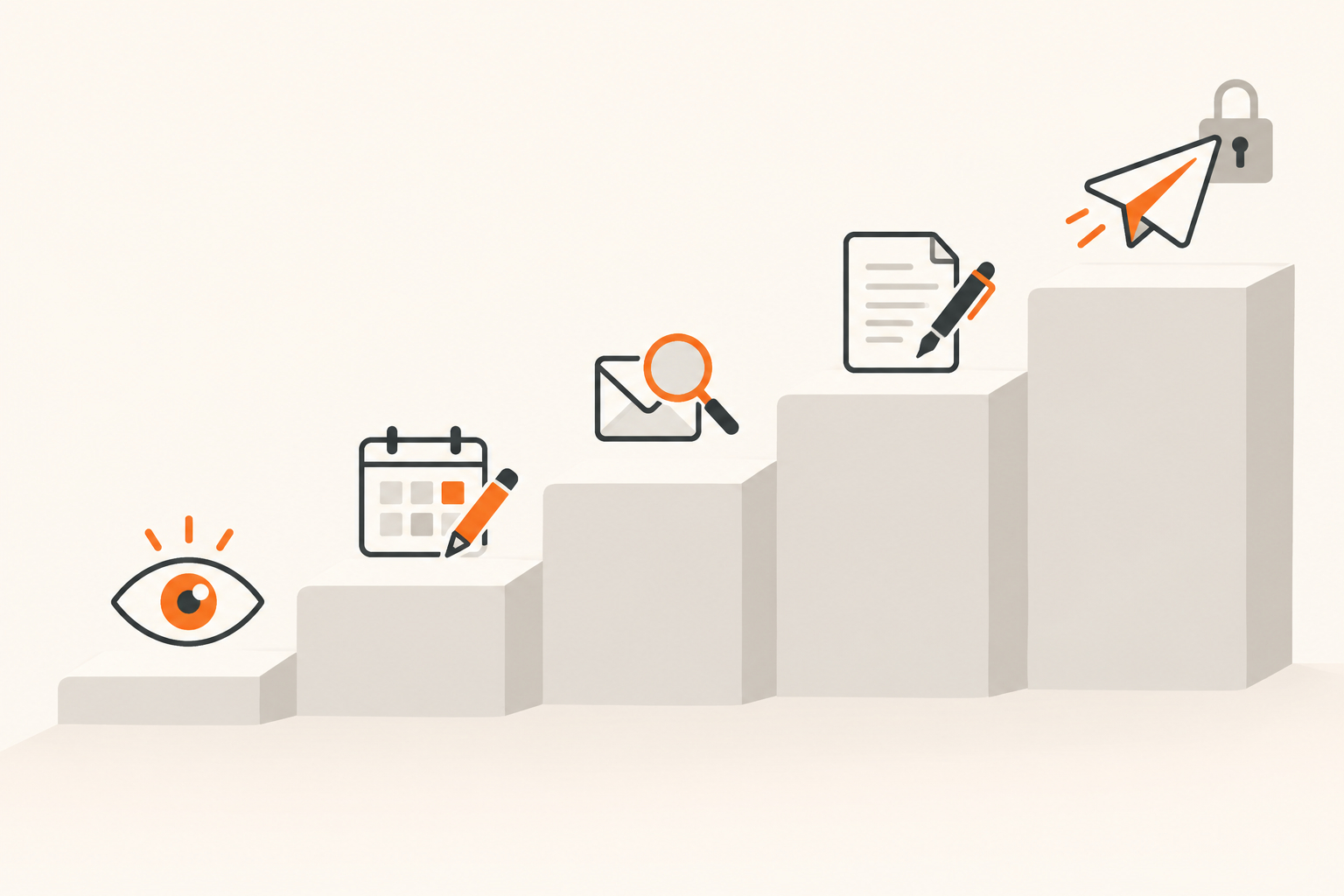
Here is the approach I use. I call it Calendar First, Outbox Last.
The idea is simple. You hand over access in order, from the lowest risk to the highest. Each step has to prove itself before the next one opens.
- Read the calendar. ChatGPT can look but not touch. "What does next week look like?" "Where are my open blocks?" If it gets things wrong here, nothing breaks.
- Suggest calendar changes. It proposes moves. You make them, or you approve them one at a time.
- Search and read mail. It finds things for you. "Find the email where the client approved the logo." Still no sending.
- Draft replies. It writes. You read every word, and you hit send.
- Send. Only for low-stakes messages you have already approved as a type, if ever.
Most owners never need step five. Steps one through four give back most of the time. The research above backs that up. The hours saved come from finding, reading, and drafting faster. You can keep the talking for yourself.
Why this order? It comes from 16 years in manufacturing and supply chain. You never run a new process at full speed on day one. You do a pilot run first. Small batch. You check the parts. Then you turn up the speed, one notch at a time. On a plant floor, that is how you avoid a recall.
Your inbox deserves the same respect as a production line.
What My Wall Calendar and My Agent Workforce Taught Me About Access
I have built two systems that make this real for me.
The first is at home. Our Digital Wall Calendar replaced a $50 a month subscription. It also ended the nightly "what does tomorrow look like" conversation. Everybody can see the day at a glance. Nobody has to ask.
Building it taught me something. The real win was that the whole family could see the plan. Seeing was enough to save the time. Changing things still happens on purpose, by a person.
That is the same lesson as step one above. Just letting ChatGPT read your calendar and answer questions about it gives back a surprising amount of Energy. You do not have to hand over more to get the win.
The second system runs my business. I have a workforce of AI agents that research, draft content, keep notes, and handle a lot of the daily work. This article came out of that system. An agent found the news, checked the sources, and drafted it. It is sitting in my review pile until I say yes.
Every one of those agents follows one hard rule. Draft first. I am the only approval gate. Nothing sends, posts, books, buys, or signs until I approve it.
That rule is why I trust the system. My agents are fast. They are also confident, and they do not feel the cost of a wrong email. I do. So they get to read, research, and write all day long. The send button stays mine.
I wrote more about this in my piece on the Read, Draft, and Act keys for AI agents. The iCloud plugins are a perfect test of that idea. Reading is one key. Drafting is another. Sending is the big one.
My Weekly Meal Planner works the same way, by the way. It replaced HelloFresh and ended our Sunday planning spiral. It suggests the week. We still decide what lands on the table. Same rule. The system does the heavy lifting. People make the final call.
Run the Time, Money, Energy Test Before You Connect
Every system I build has to give back Time, Money, or Energy. If it gives back none, it goes. Here is how that test works on the iCloud plugins. I will use a made-up example to show it. This is a pretend business, not a client story.
Picture a mom who runs a small online bakery from her kitchen. Her orders, her pickup times, and her kids' schedules all live in iCloud. She reads about the new plugin on Tuesday night.
Time. She connects the calendar first and asks, "When can I fit three custom cake orders next week around the kids' practices?" ChatGPT answers in seconds. That used to be ten minutes of scrolling. Real Time back.
Money. The plugin comes with every ChatGPT plan, free included, so there is no new bill to try it. The money risk is a wrong email. If ChatGPT sends a customer the wrong pickup time, she might lose an order. Keeping send behind her own click protects that.
Energy. This is the big one for her. Not carrying the whole week in her head is a relief. But a surprise email that went out without her knowing would cost her a bad night of worry. Deciding the rules ahead of time takes that worry off the table.
For her, the calendar passes the test right away. Mail search passes after two weeks. Sending stays off, because the risk is bigger than the reward.
Your answer might be different. That is the point of running the test. You decide based on what it gives back to your business and your family.
If you are looking at other assistants that pull your business tools into one place, I covered the same questions for Google's Gemini Business Hub.
How to Connect ChatGPT to iCloud the Smart Way: 7 Steps
You do not need an IT person for this. Give it about 30 minutes.
- Check your email address first. Open Settings on your iPhone and look at your iCloud email. If it ends in @icloud.com, @me.com, or @mac.com, the plugin can see it. If your business mail runs through Gmail or Outlook, this plugin will not help with that inbox.
- Make sure two-factor authentication is on. Apple requires it before you can create an app-specific password. On your iPhone, go to Settings, tap your name, then Sign-In and Security. Turn it on if it is off.
- Create one app-specific password per plugin and label it clearly. Sign in at account.apple.com. Go to Sign-In and Security, then App-Specific Passwords. Generate one and name it something like "ChatGPT Calendar." Apple lets you have up to 25 active at once, so separate ones make it easy to cut off one without the other.
- Connect the calendar only, and ask read-only questions for two weeks. Try "What does my week look like?" and "Where do I have two free hours on Wednesday?" Check its answers against your phone. Note any mistakes.
- Write your own rules down before adding mail. One line each. For example: "ChatGPT can search and draft. It never sends to clients. I send everything myself." Keep that note where you will see it.
- Add mail and test with searches before drafts. Start with "Find the last email from [client] about the invoice." When the searches are right every time, move to drafts. Read every draft in full before you send it yourself.
- Put a monthly check on your calendar, and know how to pull the plug. Once a month, ask: what did this give me back in Time, Money, or Energy? If the answer is "not much," revoke the password at account.apple.com. Apple says that signs the app out right away. Changing your main Apple password also revokes every app-specific password at once.
Frequently Asked Questions
Can ChatGPT connect to iCloud Mail and Calendar?
Yes. As of October 27, 2026, ChatGPT offers iCloud Mail and iCloud Calendar plugins on all plans, including free, on the web, desktop app, and iPhone. You connect with your Apple account and an app-specific password. Once connected, ChatGPT can read and update calendar events, search and read mail, manage drafts, look up contacts, and send email.
Does the ChatGPT iCloud plugin work with Gmail or Outlook?
No. The iCloud Mail plugin only works with Apple email addresses ending in @icloud.com, @me.com, or @mac.com. MacRumors reports that ChatGPT cannot see Gmail or Outlook accounts, even if you read them in the iPhone Mail app. If your business email runs through Google or Microsoft, you need a different connection for that inbox.
Is it safe to let ChatGPT send email for my business?
It can be, but start slower. Reading and drafting give back most of the time savings with far less risk. Sending puts your name on every message. Research from Microsoft and Carnegie Mellon found that people who trust AI more check its work less. Keep sending as your own click until you have tested the drafts for weeks.
How do I disconnect ChatGPT from my iCloud account?
Sign in at account.apple.com, open Sign-In and Security, and choose App-Specific Passwords. Remove the password you made for ChatGPT, or choose Revoke All. Apple says the app is signed out until you create a new password. Changing your main Apple password also revokes every app-specific password automatically.
What is an app-specific password?
An app-specific password is a separate password Apple creates so another app can reach your iCloud data without your main Apple password. Your account needs two-factor authentication to make one. You can have up to 25 at a time, and you can remove any single one without changing your main password. That makes it easy to cut off one app.
The Family Calendar Is Worth Protecting
Back to that calendar on the wall. The one with the dentist and the client call and "Grandma visiting" all in a row.
That calendar holds your business and your family. Your whole life, on one screen.
So when a new tool asks for the keys to it, you get to answer slowly. That is good management. It is the same thing you already do when a new babysitter starts. First they watch the kids while you are home. Then for an hour. Then a whole evening. Trust gets built in steps.
ChatGPT can be a great helper in your week. It can find the email you lost. It can spot the open afternoon you did not see. It can draft the reply you have been putting off since Tuesday. All of that is real Time and Energy back.
Let it earn that, one key at a time. Calendar first. Outbox last. Your name stays yours.
That is A Better Way.
Keep Learning
- Should You Give an AI Agent the Passwords to Your Business Accounts? The Read, Draft, and Act keys, and why the send button stays behind your yes.
- Is Google's New Gemini Business Hub Worth Using for Your Small Business? How Google's business assistant works, and who it fits.
- Should You Let a Proactive AI Agent Like Claude Duet Decide What Needs Your Attention? What happens when an agent starts choosing your priorities for you.
- Is Your AI Assistant Quietly Making Your Business Decisions for You? Why your own call should come first, and how to let AI argue with it.
- How Do You Keep AI Usage Charges From Surprising Your Small Business? Set the ceiling before the meter runs on any AI tool that bills by use.
About the Author
Warren Schuitema is an AI Systems Consultant with Matchless Marketing and Matchless AI. He spent 16 years in manufacturing and supply chain, where he learned to pilot a new process before running it at full speed. He runs his business day to day with a workforce of AI agents that draft fast and never send, post, or spend without his approval. At home, his Digital Wall Calendar replaced a $50 a month subscription and the nightly schedule conversation, and his Weekly Meal Planner replaced HelloFresh. He helps small business owners and parent entrepreneurs build practical AI systems that give back Time, Money, or Energy. He writes as The AI Dad.