Canva just added an off switch for its generative AI. Here is how I would decide which AI features to keep, which to switch off, and why that choice belongs to you.
By Warren Schuitema, AI Systems Consultant, Matchless Marketing / Matchless AI
Last Updated: November 2026

Picture it. You open your design app to make one simple graphic. A flyer for Saturday. Two lines of text and a photo.
Before you type a word, three AI buttons are offering to help. Write it for me. Design it for me. Expand the photo for me.
You know exactly what you want to say. You just want to say it.
If that sounds familiar, a quiet news story from November 19 is worth your attention. Canva, the design app millions of small business owners use for social posts and flyers, added a switch that turns off its generative AI features. Free and Pro users can flip it in their settings.
So, should you turn off the AI features in your business tools? Sometimes, yes. Keep the AI features that give you back Time, Money, or Energy. Turn off the ones that get in your way, slow you down, or make your work look less like you. And never let a software company make that call for you by default.
The off switch is good news. AI can stay a great tool, and you get to pick where it helps. Choice is good. Let's look at what Canva changed, what the research says about how owners and customers feel, and the simple test I use to decide what stays on.
Key Takeaways
- Canva now lets Free and Pro users turn off its generative AI features, and a second setting shows fewer AI-made templates and elements in search.
- Small business owners already use a lot of AI. In a February 2026 SBE Council survey, 82% used at least one AI tool, and the median owner used five.
- Customers are wary. Pew Research found 50% of U.S. adults feel more concerned than excited about AI in daily life, and 76% say it matters to know whether content was made by AI or by people.
- Every AI feature in your tools should earn its seat, the same way a new hire does. If it does not give back Time, Money, or Energy, switch it off.
- A 30-minute review of the AI settings in the tools you already pay for is one of the easiest wins you can get this month.
Canva Just Handed You the Off Switch
Here is what changed.
On November 19, Canva rolled out two new controls. The first one turns generative AI features off for your account. According to coverage from 9to5Mac and PetaPixel, you find it under Profile, then Settings, then Permissions. The switch is called "Enable generative AI features."
PetaPixel reports it turns off tools like Magic Write, Magic Design, Magic Expand, Magic Edit, Dream Lab, and Canva Code, plus making images through Canva's AI chat. Canva's help page says the switch covers AI features that already have a permission setting, and new AI features will follow it as they are added.
Some tools stay on either way. Background Remover and Magic Grab keep working. Canva's reason, as quoted by 9to5Mac, is that they "work only with what's already in a design." They don't make anything new. They just help you edit your own photo faster.
The second control is about what you see. Under Profile, then Your Account, then AI Personalization, you can ask Canva to show fewer templates and elements it has tagged as AI-generated in search and recommendations. Canva's help page is honest about the limits. It says some AI content may still appear, and the setting "only works as well as our AI-flagging coverage allows."
Two details matter here.
First, both settings start in the AI-friendly position. Canva's help page says AI features are on by default, and the "show less AI content" setting is off by default. Nothing changes unless you go change it.
Second, look at how Canva explained the move. In its statement, quoted by 9to5Mac, the company said, "It's not our place to tell anyone how to create." It also said some users want AI and some don't, and that "both views are valid."
I like that. A software company saying its users get to decide is rare.
Most Owners Already Pay for More AI Than They Use
Now let's talk about you.
The Small Business and Entrepreneurship Council surveyed 517 small business owners with 2 to 99 employees in February 2026. The survey was run by TechnoMetrica.
Here's what jumped out at me:
- 82% use at least one AI tool.
- The median owner uses five AI tools.
- 16% use 10 or more.
- Median spending on AI is $2,200 a year.
- The median owner says AI saves them 5 hours a week.
Five hours a week is real. That's a whole afternoon back.
But read the rest of the survey and you see the other side.
45% of owners worry about reliability and accuracy. 27% point to high cost or unclear return on investment. And while 43% review AI-made content for factual or legal problems before it goes out, 25% have no formal review steps at all.
So most owners are running a handful of AI tools, paying real money for them, and a quarter of them have no checkpoint between the AI and the customer.
That's a setup problem. And setup is something you can fix this week.
And here's the thing nobody mentions. Those five tools aren't the whole picture. Almost every app you already pay for has been adding AI buttons this year. Your design tool. Your email. Your accounting app. Your CRM. You didn't buy those features. They showed up.
Some are great. Some just sit there, waiting to write a caption you'd rather write yourself.
Your Customers Want to Know What Was Made by a Person
There's another reason this matters, and it's on the customer side.
Pew Research Center surveyed 5,023 U.S. adults in June 2025 about AI. The results lined up with what a lot of us already feel.
Half of U.S. adults, 50%, say the growing use of AI in daily life makes them feel more concerned than excited. That's up from 37% in 2021. Only 10% say they're more excited than concerned.
About six in ten say they'd like more control over how AI is used in their own lives.
And this is the number every small business owner should sit with. 76% of Americans say it's extremely or very important to be able to tell whether pictures, videos, and text were made by AI or by people. Yet 53% aren't confident they can tell the difference.
Put that together.
Your customers care a lot about whether a real person made what they're looking at. Most of them can't tell for sure. So they go on feel. If your post looks like every other AI-made post in their feed, they notice something is off, even if they can't name it.
That's the real cost of leaving every AI button on and clicking it out of habit. Your work starts to look like everyone else's. And for a small business, looking like you is the whole advantage.
Canva's second setting speaks right to this. It exists because some of its users told Canva they "want an easier way to find design assets made by real people," as 9to5Mac quoted the company.
If designers want that, your customers probably do too.
It Feels Wrong to Turn Off AI When Everyone Says Use More
Let me be fair to the other side, because I feel the pull too.
I help people build AI systems for a living. My whole business runs on AI agents. So it might sound strange for me to tell you to switch any of it off.
And the pressure is real. Every headline says the businesses that use AI will win and the ones that don't will fall behind. When a tool you pay for offers a shiny new AI button, turning it off can feel like falling behind on purpose.
There's also a quieter worry. What if you turn it off and you need it later? What if you're missing the one feature that would have saved you hours?
Those are fair questions. Here's my answer.
Turning off an AI feature you don't use is just good housekeeping. It's the same thing you'd do with any tool on your workbench that doesn't earn its spot. You can flip the switch back on in about ten seconds. Nothing is lost. And clearing the clutter makes it easier to see which AI features are actually helping you.
The goal was always to get your time back. Using the most AI was never on the scorecard.
Every AI Feature Is a New Hire and Has to Earn Its Seat
Here's how I think about it.
I spent 16 years in manufacturing and supply chain before I got into AI work. In lean manufacturing, one of the first things you learn is a method called 5S, and the first S is Sort. You go through the work area and pull out anything that isn't used for the job. If a tool hasn't been touched, it gets tagged and moved out of the way.
The tool might be perfectly good. Clutter still slows down good work. People waste time reaching past things they don't need.
AI features are the same. Each one is like a new hire who showed up on your team without an interview. Some of them are fantastic. Some of them are standing in the doorway.
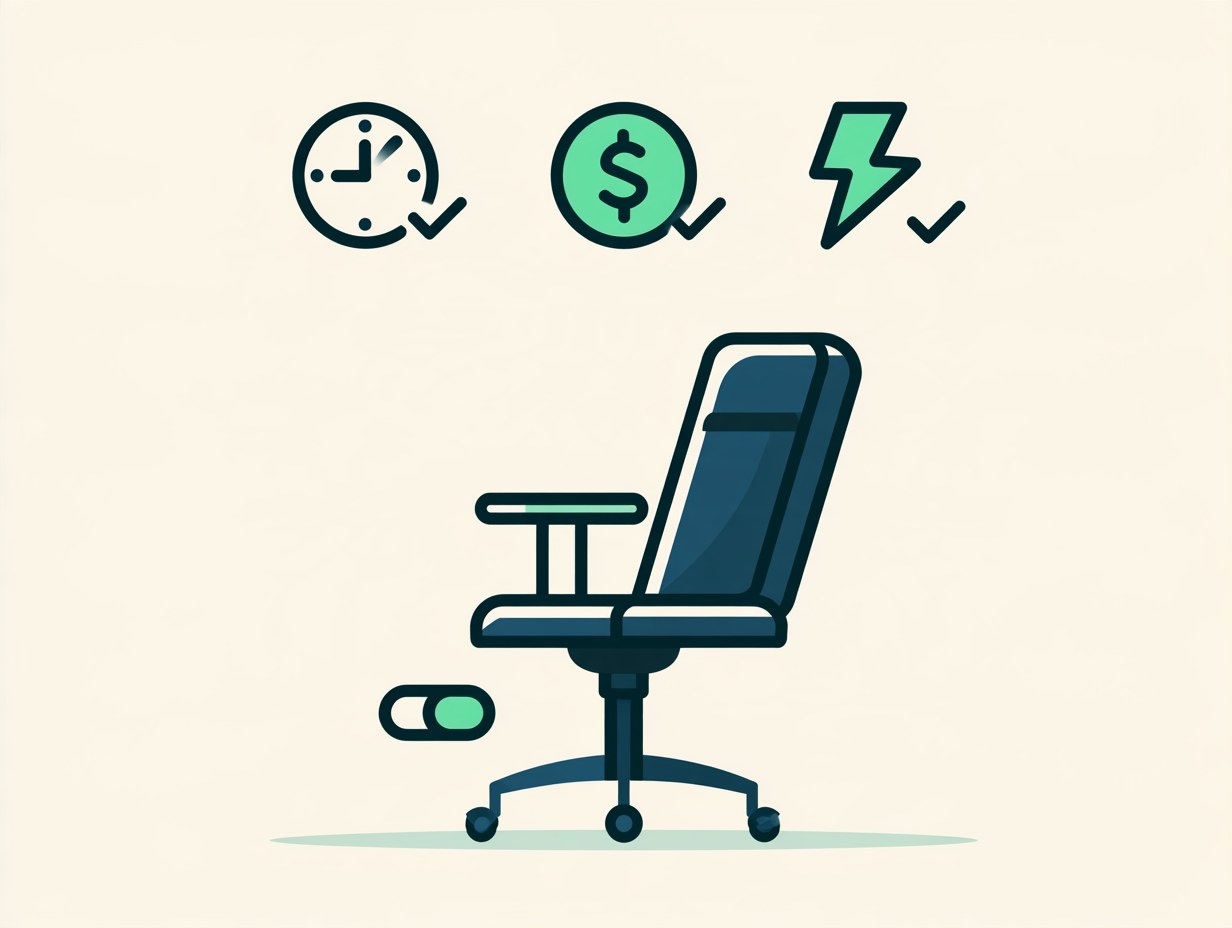
So I run every AI feature through what I call the Earn-Its-Seat Test. It's my usual Time, Money, Energy question, aimed at one feature at a time:
- Time. Does this feature save me time on a task I do every week? Not once. Every week.
- Money. Does it save me money, or help me make money, in a way I can point to?
- Energy. Does it take a draining task off my plate, or does it add one more thing to check and fix?
If a feature passes at least one of those clearly, it stays on. If it passes none, it gets switched off. No guilt.
And there's one more rule I add for anything customer-facing. If the customer would care whether a person made it, a person makes it, or a person signs off on it.
Here Is How I Run This in My Own Business and Home
I don't just talk about this. It's how I've built everything I use.
Start at home. Our family used to pay about $50 a month for a wall calendar subscription. Every night, we'd still end up having the same "who's driving who where tomorrow" conversation. So I built our own Digital Wall Calendar with AI. It replaced the subscription and ended the nightly schedule talk.
That's the Earn-Its-Seat Test in action. The subscription had features. Lots of them. But it wasn't giving us back time or energy, and it was costing money every month. So it got cut, and something simpler took its place.
Same with meals. We used HelloFresh for a while. I built a Weekly Meal Planner instead, and it ended our Sunday planning spiral. The AI does the part I hate, which is figuring out what to make and building the list. We still do the part we like, which is cooking and eating together.
Now my business. I run Matchless Marketing with a team of AI agents. They pull research, draft content, and get my week organized while I'm getting my girls off to school.
But every agent has a clear job, and none of them is allowed to send, post, or spend anything without my word. AI drafts. I decide. That's the checkpoint that 25% of owners in the SBE Council survey don't have, and it's the single most important setting in my whole system.
I pay for Canva Pro myself, so I'm running this same test on my own account. Each feature gets the three questions. The ones that pass stay. The ones that don't get switched off.
Here's the part most people miss. Turning off the noise makes the good AI work better. When there are fewer buttons, you use the right ones on purpose. You stop clicking "write it for me" out of habit and start using AI where it truly saves you an afternoon.
Seven Steps to Decide Which AI Features Stay On
Here's how I'd do this in one sitting. Give yourself 30 minutes and a cup of coffee.
- List every tool you pay for. Open your bank or card statement and write down every software subscription. Design, email, accounting, scheduling, CRM, social media. Most owners find more than they expected.
- Find the AI settings in each one. Look in Settings, Permissions, or Account for words like AI, Magic, Assistant, or Copilot. In Canva, it's Profile, then Settings, then Permissions, then "Enable generative AI features." Write down what each tool offers.
- Run the Earn-Its-Seat Test on each feature. Ask the three questions. Does it save time every week? Does it save or make money? Does it take a draining task off your plate? Mark each feature keep, switch off, or try for two weeks.
- Keep the editing helpers, question the makers. Tools that clean up your own work, like a background remover, tend to pass easily. Tools that make content from scratch need a closer look. Ask whether your customers would want to know a person made that thing.
- Turn off what doesn't earn its seat. Flip the switches. It takes seconds, and you can turn any of them back on later. If you're on a team plan, ask whoever manages your account to make the change for the team.
- Add one human checkpoint. For anything that goes to customers, decide who reviews AI-made content before it goes out. Even if it's just you, reading it once out loud. Write that rule down so it doesn't depend on your memory on a busy Friday.
- Put a review on the calendar. Software companies add AI features all the time, and Canva says new AI features will follow your setting. Other tools may not work that way. Set a reminder every three months to check the AI settings in your top five tools again.
Start with step one tonight. Just the list. It takes ten minutes, and it usually tells you exactly where the clutter is.
Frequently Asked Questions
How do I turn off AI in Canva?
Go to your Profile, then Settings, then Permissions, and switch off "Enable generative AI features." This is available on Canva Free and Pro. To see fewer AI-made templates and elements, go to Profile, then Your Account, then AI Personalization. On Teams and Enterprise plans, your account admin manages AI access for everyone.
Does turning off generative AI in Canva remove every AI tool?
No. Some editing tools stay on either way, including Background Remover and Magic Grab. Canva says they work only with what is already in your design and do not make anything new. The "show less AI content" setting also reduces AI-made templates in search, but Canva says some may still appear.
Will turning off AI features put my small business behind?
Not if you choose with care. The goal is to keep the AI features that save you time, money, or energy and switch off the ones that don't. Clearing unused features often helps you use the good ones better. You can turn any switch back on in seconds if you change your mind.
Do customers care if my marketing is made with AI?
Many do. Pew Research found 76% of U.S. adults say it is extremely or very important to know whether pictures, videos, and text were made by AI or by people. Half feel more concerned than excited about AI in daily life. Content that sounds and looks like you builds more trust.
What is the Earn-Its-Seat Test?
The Earn-Its-Seat Test is a simple way to decide whether an AI feature stays on. Ask three questions: Does it save me time every week? Does it save or make me money? Does it take a draining task off my plate? If it passes none, switch it off. For customer-facing work, a person always signs off.
A Better Way to Use AI
Go back to that flyer.
Three AI buttons wanted to help. On a four-minute job, none of them was going to give you time back. Close them, make the thing yourself, and it looks like your business. That's the whole point.
You don't owe any software company your clicks. The AI features in your tools are there to serve you. Canva just said so out loud, and I hope more companies follow.
So take 30 minutes this week. Make the list. Open the settings. Run the test.
Keep the features that hand you back an afternoon. Keep the ones that save you money you can point to. Keep the ones that take the draining work off your plate so you have something left at the end of the day for your family.
Switch off the rest without a second thought.
Because the goal was always more of your life back.
That's A Better Way.
Keep Learning
- What Happens to Your Small Business When Your AI Tools Go Down? How to keep working when the AI you count on goes dark for a day.
- Should You Let ChatGPT Handle Your Small Business Sales Follow-Up? Where AI helps with follow-up and where a person still needs to step in.
- Is Relying on a Single AI Tool a Risk for Your Business? What to think about before you run everything through one platform.
- Why Does Your AI Agent Forget Your Rules Halfway Through a Long Job? Simple ways to keep your AI on track when the work gets long.
About the Author
Warren Schuitema is an AI Systems Consultant with Matchless Marketing and Matchless AI. Before AI, he spent 16 years in manufacturing and supply chain, where every tool on the floor had to earn its place. Today he runs his own business with a team of AI agents built on one rule: AI drafts and a human decides. He builds practical AI systems for small business owners and parent entrepreneurs, from a Weekly Meal Planner that replaced HelloFresh to a Digital Wall Calendar that replaced a $50 a month subscription. His test for every system is simple. Does it give back Time, Money, or Energy? Learn more at matchless-marketing.com.