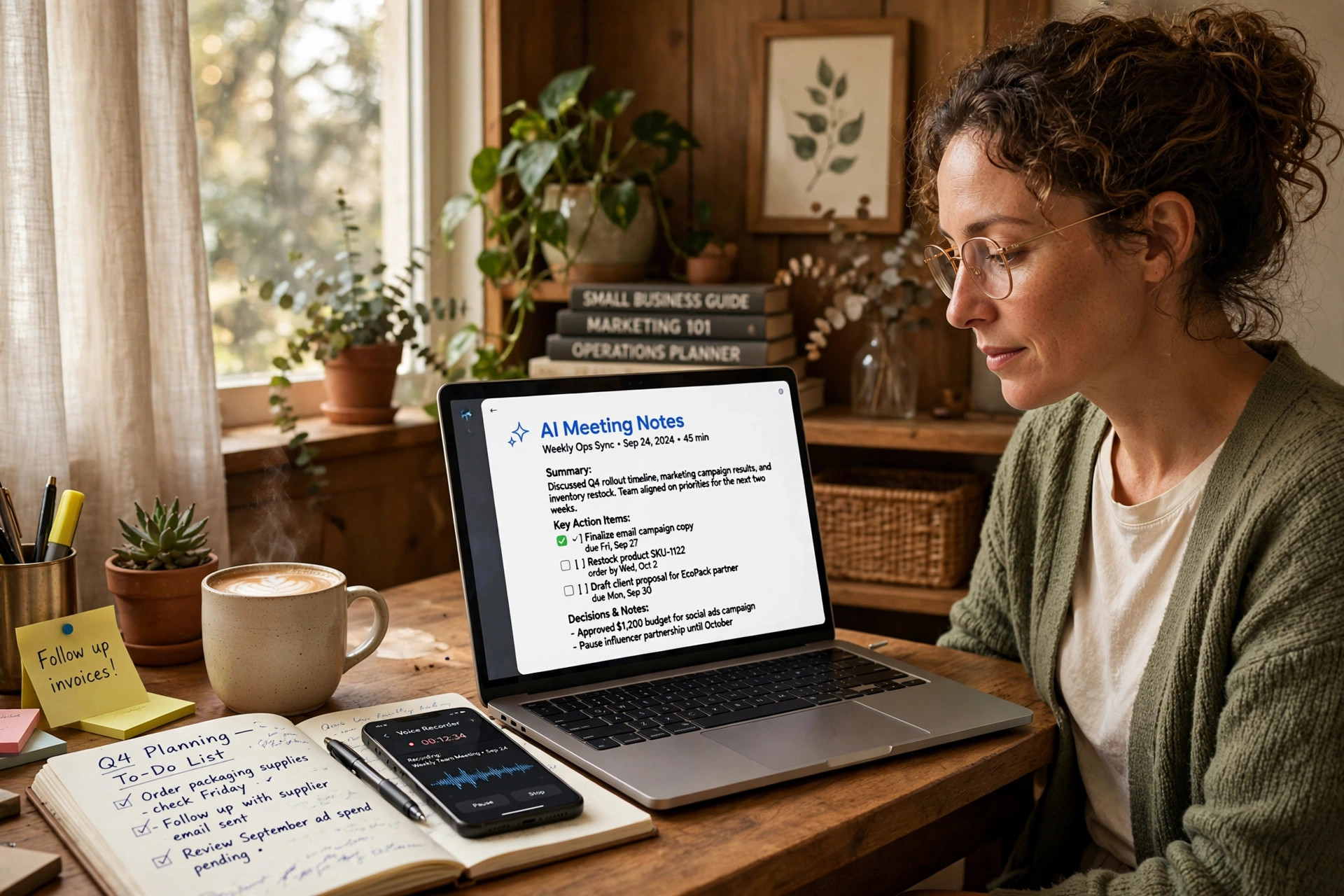
OpenAI's new audio upload and Meetings plugin just changed how small business owners handle every conversation they have.
The meeting ends. The client seems happy. You close Zoom.
And then it starts. Scrolling back through your notes. Trying to remember what you said you'd send by Thursday. Rebuilding the conversation in your head so you can write a coherent recap email. Thirty minutes pass. Sometimes forty-five.
You had a great call. The follow-up turned it into an administrative event.
Here is the short answer: AI can handle this end to end now. Not partially. Not with a plugin that still needs you to type out half the summary yourself. All of it — the transcript, the action items, the follow-up email, the next steps — in under 10 minutes, using tools you likely already pay for.
OpenAI launched audio uploads for ChatGPT on October 6, 2026. The ChatGPT Meetings plugin went into beta for Pro and Business users on September 29. Together, these two tools turn every client call you have into a documented, actionable, shareable record without adding anything to your plate.
This is the workflow.
Key Takeaways
- ChatGPT can now accept audio files (MP3, MP4, M4A, WAV, WebM) and return a transcript, summary, and draft action items in under a minute per five minutes of recording.
- The ChatGPT Meetings plugin (Mac beta, Pro and Business plans) listens to your calls live and writes the notes before you even hang up.
- 44% of meeting action items are never completed without a system to track them — AI closes that gap automatically.
- The full workflow: record the call → upload to ChatGPT → generate summary and action items → draft the follow-up email → send. Total time: under 10 minutes.
- Audio is deleted by OpenAI after transcription. Only the text stays in your chat history.
The Follow-Up Tax Every Small Business Owner Pays
You are already paying for every great meeting twice.
Once when you show up and do the actual work. Again when you sit down afterward to document what happened, draft the follow-up, write out the action items, and track who agreed to do what.
Research from Fellow puts the non-completion rate for meeting action items at 44%. That is not because people are lazy. It is because the system for capturing them is broken. The meeting ends, everyone walks away with slightly different mental notes, and the things that were supposed to happen quietly fall through the cracks.
The average employee spends 11.3 hours per week in meetings, according to My Hours. Managers average 13. And according to Join Genius, 5 hours per week go to unproductive meetings — meetings where the outcome either wasn't captured or never led anywhere.
For small business owners, the math gets worse. Time etc found that 36% of a typical entrepreneur's workweek goes to small administrative tasks. Writing meeting recaps, drafting follow-up emails, logging notes into a CRM — that is exactly the category.
The meeting itself usually isn't the problem. The paper trail afterward is where the time goes.
What Changed This Month: Two New Tools Worth Your Attention
Two things just dropped that change this calculation completely. They arrive in the same month that Claude moved directly into Google Docs, Sheets, and Slides — part of a larger shift of AI moving into the tools you already use instead of another tab you have to open.
ChatGPT Audio Upload (launched October 6, 2026)
Paid plans — Plus, Pro, Team, Business, Enterprise, and Edu — can now upload audio recordings directly into ChatGPT. Supported formats are MP3, MP4, M4A, WAV, and WebM, which covers recordings from Zoom, Google Meet, Teams, and every major audio app.
The process is simple. Attach the file in the chat. ChatGPT's Whisper model transcribes it, typically in under a minute for a five-minute recording. Then you ask for what you need: a summary, action items, a follow-up email, whatever format works for your workflow. OpenAI deletes the audio after transcription. Only the text stays in chat history.
ChatGPT Meetings Plugin (beta, Pro and Business, macOS)
If you would rather skip the upload step entirely, the Meetings plugin handles it live. You install it from Plugins in the macOS ChatGPT app, give it microphone and system audio access, and click Take Notes when your call starts. It captures your side and theirs, types your manual notes alongside the transcript, and generates a summary with suggested action items the moment you click stop.
No bot joining the call. No participant link to share. It runs quietly on your Mac and works for Zoom, Google Meet, Teams, and in-person conversations.
The notes and action items show up in ChatGPT Space, where you can edit them, start a follow-up email draft with one click, or connect it to your Google or Outlook Calendar to turn action items into scheduled reminders.
Both tools delete the audio once notes are ready. The text is what stays.
The Reframe: Your Client Call Ends at the Meeting
Here is the part most people miss about what these tools actually change.
The meeting was never the product. The product is what comes after. The recap that builds trust. The action items that move the project forward. The follow-up email that lands in your client's inbox and reminds them why they hired you.
Most small business owners have gotten good at the call itself. The conversation, the listening, the positioning. Where deals stall, relationships cool, and projects slow is in the gap between "great call" and "okay, what exactly are we doing next and who's doing it."
AI doesn't make you a better listener. It gives everything you heard a place to land.
This is the "A Better Way" application: you close the laptop knowing the call documentation is done, the follow-up is drafted, and the next action is on someone's calendar — without touching any of it yourself.
The AI Meeting Pipeline: 4 Steps to Go from Call to Action Plan
This is the specific setup that works. Not a theory. A sequence.
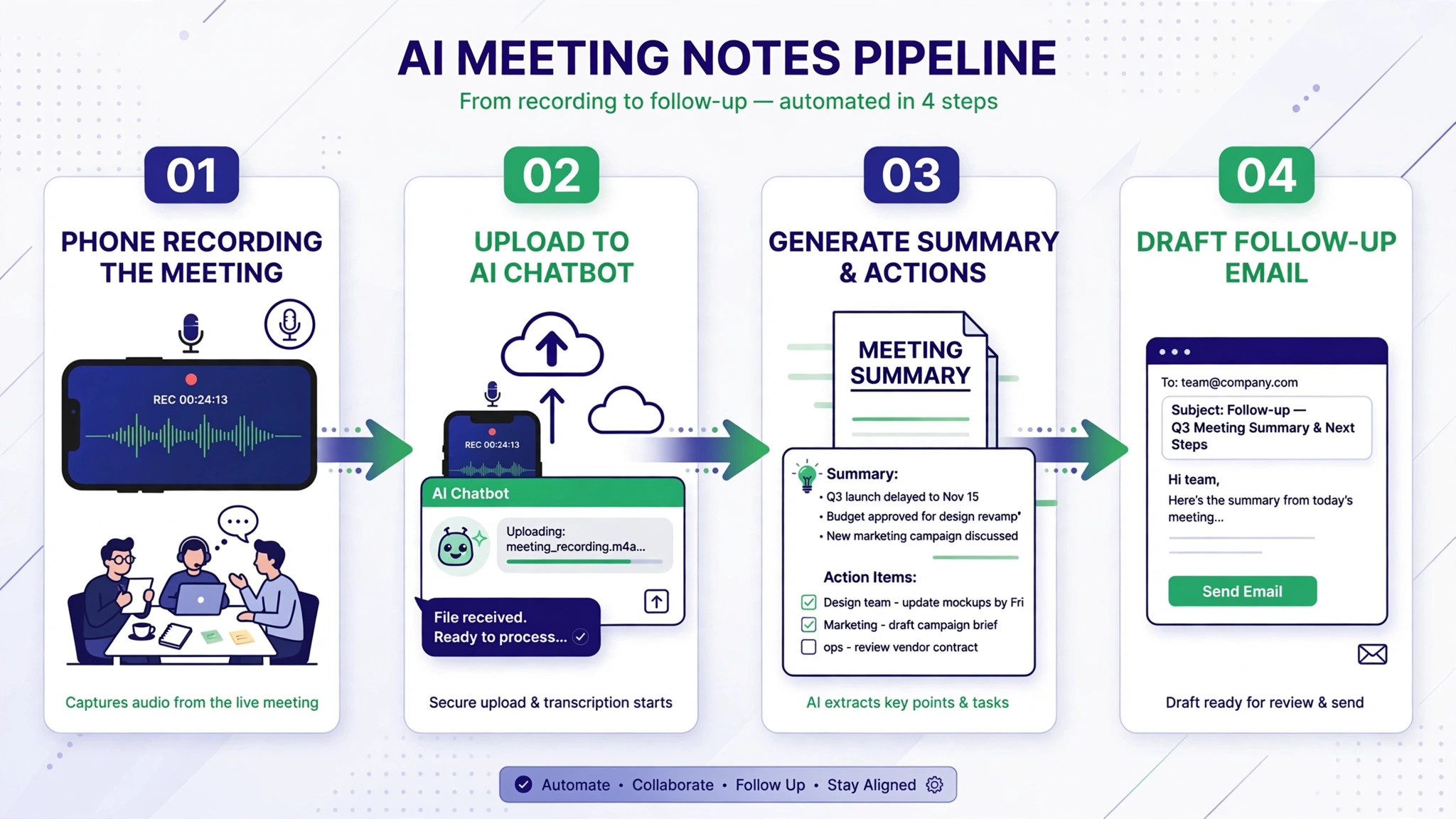
Step 1: Record the Call
Most video platforms already record if you click a button. Zoom, Google Meet, and Teams all save locally or to the cloud. If you are on a phone call, use an app like Rev or your phone's built-in voice recorder. If you're on Mac and using the ChatGPT Meetings plugin, skip this step entirely — the plugin handles capture live.
Consent first. Tell participants at the start of the call that you record for internal documentation purposes. One sentence. Done.
Step 2: Upload the Recording to ChatGPT
Open ChatGPT on a paid plan. Drag the audio file into the chat window, or use the paperclip icon to attach it. Do not ask a question yet. Just upload it.
ChatGPT processes the audio automatically. A 45-minute call usually produces a transcript in 2 to 3 minutes.
Step 3: Generate Your Summary and Action Items
Once the transcript is ready, run this prompt:
"Based on this meeting transcript, give me: (1) a 3-sentence summary of what was discussed and decided, (2) a numbered list of action items with the responsible person and deadline if mentioned, and (3) any open questions that still need an answer."
You will get a clean, structured output you can paste anywhere. No reformatting required.
Step 4: Draft the Follow-Up Email
Still in the same chat thread, run this follow-up prompt:
"Using the summary and action items above, write a professional but conversational follow-up email to [client name]. Keep it under 150 words. Lead with what was decided, list the action items clearly, and close with the next scheduled touchpoint. My name is Warren and my company is Matchless AI."
The draft comes back in seconds. Review it, adjust anything that needs a personal touch, and send.
Total elapsed time from upload to sent email: under 10 minutes if the call was under an hour.
6 Ways to Get More Out of the AI Meeting Pipeline
1. Build a prompt template you reuse every time.
Save your summary and follow-up prompts somewhere you can copy and paste fast — in a Notes app, a shared ChatGPT project, or a simple text file. The less friction, the more consistently you use it.
2. Add a CRM update step.
After the follow-up is drafted, run one more prompt: "Based on this summary, write a 2-sentence CRM note I can log under this client record. Include the date, what was decided, and the next action." Paste it into your CRM before closing the tab. Thirty seconds. Done.
3. Use the action items list as your task inbox.
Copy the numbered action items directly into your project management tool or task app. If you use Notion, Asana, or even a Google Tasks list, pasting the numbered list from ChatGPT gives you an instant task set that is directly tied to the real conversation.
4. Set up the Meetings plugin for recurring client calls.
If you have a regular weekly or biweekly call with a specific client, configure the Meetings plugin with a short context note — who this client is, what project you are working on — so the summaries come back with that background already baked in. Less editing, more accuracy.
5. Use the transcript as a proposal input.
If a call included scope discussion, paste the relevant transcript section into a new ChatGPT prompt: "Based on this conversation, draft the scope of work section for a project proposal. Use specific language from the discussion." Proposals that sound like the conversation your client just had with you close faster than generic templates.
6. Build an email wait time checkpoint.
Do not send the follow-up email immediately. Wait at least 30 minutes, then read it once before sending. AI writes fast. You still own the relationship. A quick read to make sure the tone is right is the check that keeps the process human.
Frequently Asked Questions
Is the ChatGPT audio upload available on the free plan?
No. Audio uploads require a paid ChatGPT plan: Plus, Pro, Team, Business, Enterprise, or Edu. Free accounts do not have this feature as of October 2026. If you are running the free plan and want this workflow, the $20/month Plus plan is the minimum entry point.
What happens to my meeting recording after I upload it to ChatGPT?
OpenAI deletes the audio file after it transcribes the content. Only the text transcript stays in your chat history. The Meetings plugin works the same way: it captures audio during the call, generates the notes, then deletes the recording. You keep the notes. The audio is gone.
Does the ChatGPT Meetings plugin require a bot to join the call?
No. The Meetings plugin runs locally on your Mac and captures system audio — whatever your computer is playing. There is no external bot joining the call, no participant link to generate, and no notice to the meeting platform. You still need to inform participants that you are recording, but the tool itself is invisible to the call.
Can I use this workflow with any recording — not just client calls?
Yes. The audio upload feature works for any recording in a supported format. Team standups, vendor calls, podcast recordings, webinar replays, voice memos — anything you have captured in MP3, MP4, M4A, WAV, or WebM works. The workflow is identical regardless of what was recorded.
Is this workflow better than a dedicated AI note-taking tool like Otter or Fireflies?
Dedicated tools do offer more features — searchable libraries, speaker identification, integrations. But for most small business owners, adding another subscription and another platform is not the better way. ChatGPT audio upload and the Meetings plugin work inside a tool you are likely already using. One workflow, one platform, one monthly bill.
You Already Had the Conversation. Stop Paying for It Again.
The call you had today is still sitting in your head right now. The name of the thing you said you'd send. The date you mentioned. The one detail you want to make sure the client understood correctly.
That is not your job anymore.
Your job is to show up to the meeting fully present, ask the right questions, and give the client the confidence that they made the right choice hiring you. The documentation, the action items, the follow-up email — that is the after-work. And after-work now has a better way.
Upload the file. Run the prompts. Send the email. Close the laptop.
The call was the product. AI handles the rest.
Keep Learning
- Do AI Agents Actually Handle Your Everyday Tasks — Or Is That Still Hype in 2026? — The five routine tasks AI agents are taking off small business owners' plates right now, with the time savings quantified and the exact no-code setup.
- AI Phone Agents for Small Business: How to Stop Losing Revenue Every Time You Step Away From Your Desk — The math on unanswered calls, which tools are worth the money in 2026, and how to set one up in a weekend.
- Is Your Sunday Night Planning Ritual Still Taking 3 Hours? Here's the AI System That Fixes That — A 20-minute AI-powered weekly reset that covers your business and your family in one Sunday session.
About the Author
Warren Schuitema is the founder of Matchless Marketing and Matchless AI, based in Alle
A repeatable workflow like this one is exactly the kind of setup worth saving as a reusable skill — see moving from Gemini Gems to skills for how to turn a saved prompt into standard work you own.
gan, Michigan. With 16 years of supply chain and manufacturing systems experience, Warren now builds AI-powered workflows and automation systems for small business owners who want to get their time back without adding more tools to manage. He has helped clients across industries implement AI systems that handle the operational load — from client communication to content creation — so the business keeps running when the owner steps away. He writes and speaks about practical AI for business owners who are building something real.